> ## Documentation Index
> Fetch the complete documentation index at: https://docs.peerlogic.com/llms.txt
> Use this file to discover all available pages before exploring further.
# Enable the Peerlogic Customer API key in Open Dental
> Add, accept, and enable the Peerlogic Customer API key in your Open Dental software so Peerlogic can connect to your practice's schedule and patient data.
Peerlogic connects to Open Dental through the Open Dental API. To give Peerlogic access, someone at your practice adds the Peerlogic Customer API key in your own Open Dental software and enables it. This takes a few minutes, and you do it when you first connect and again whenever Peerlogic gives you a new key, for example when your practice starts or stops using Aimee for scheduling.
For example, the office manager at Arizona Bright Care Dental adds the key once in Open Dental for the Phoenix clinic, and Peerlogic starts syncing that clinic's schedule.
## When to use this
* Your practice is connecting Open Dental to Peerlogic for the first time.
* Peerlogic gave you a new Customer API key, for example because your practice is adding or removing Aimee.
* Peerlogic Support asked you to check or re-enable the Peerlogic key.
## Prerequisites
* The Peerlogic **Customer API key** for your practice. Your Peerlogic onboarding contact gives it to you, or, if you're connecting Open Dental yourself in Peerlogic under **Practice Settings** > **Integrations**, click **Copy** next to the key in the setup instructions. Keep that Peerlogic window open while you work in Open Dental.
* An Open Dental user with permission to open **Setup** > **Advanced Setup** > **API**.
* If you have more than one clinic, the name of the clinic you're connecting to Peerlogic.
* If you host Open Dental on your own server instead of Open Dental Cloud, the Open Dental [eConnector](https://www.opendental.com/help252/econnector.html) must be installed and running on that server. Open Dental Cloud practices don't need to install anything.
Treat the Customer API key like a password. Paste it only into Open Dental, and don't send it by email or text message to anyone outside your practice and Peerlogic.
## Procedure
In Open Dental, go to **Setup** > **Advanced Setup** > **API**. If you have more than one clinic, make sure you're working in the clinic you're connecting to Peerlogic.
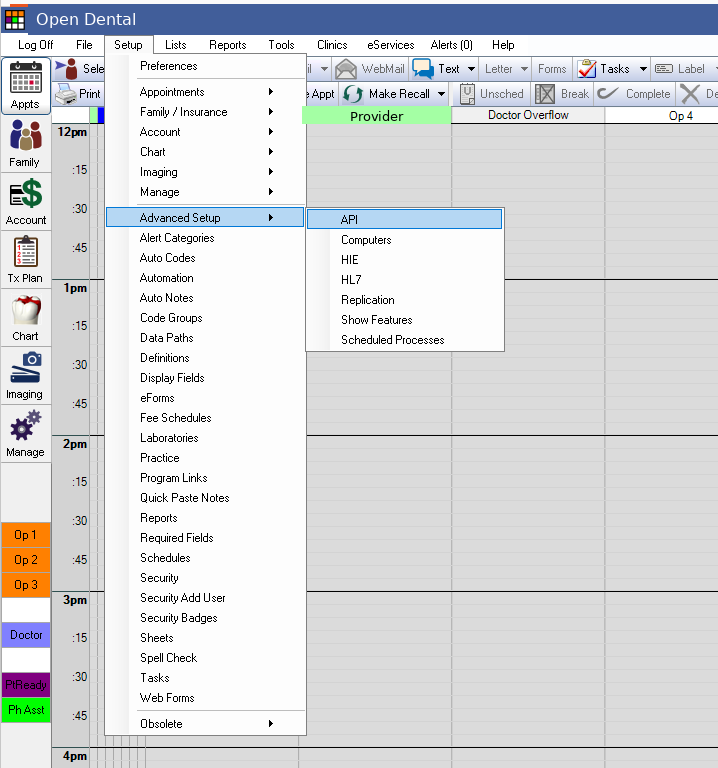 In **API Setup**, click **Add Key** in the lower left.
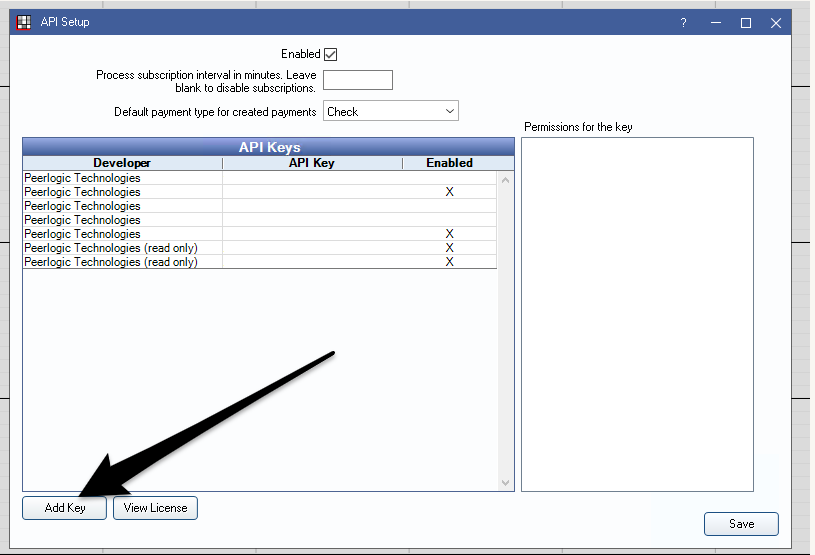 In **Assign API Key**, paste the Peerlogic Customer API key into **Enter API key**, then click **OK**.
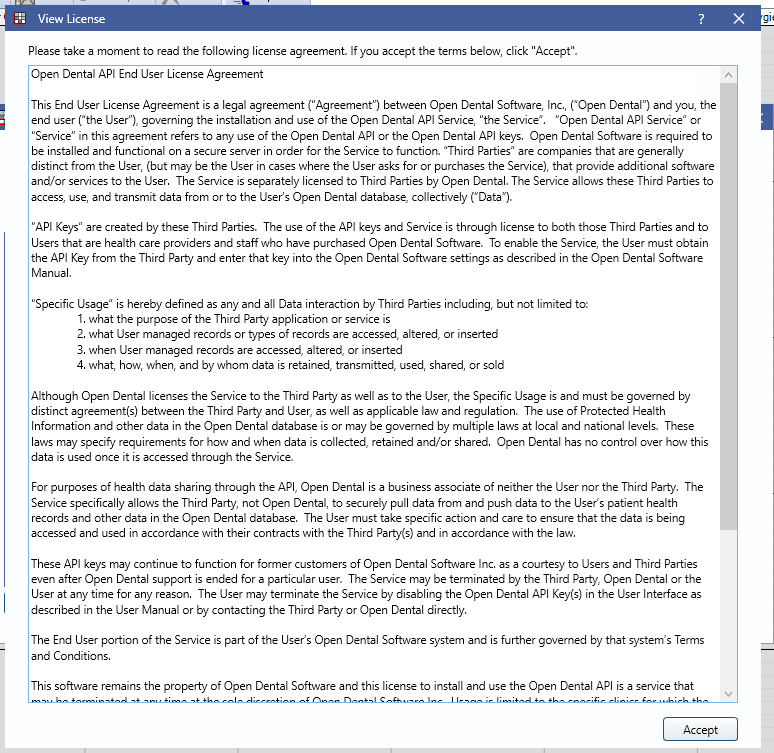
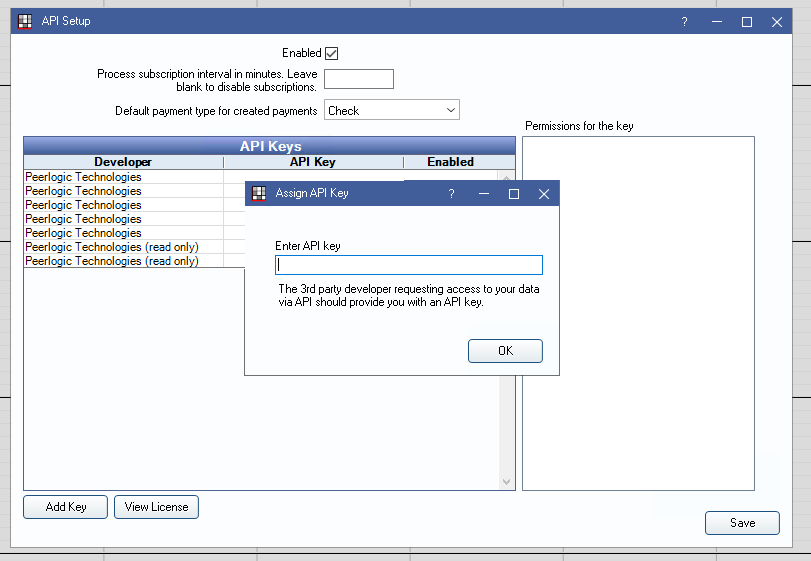 Open Dental shows its API end user license agreement. Read it, then click **Accept**.
 Open Dental shows **Successfully assigned API key**. Click **OK**.
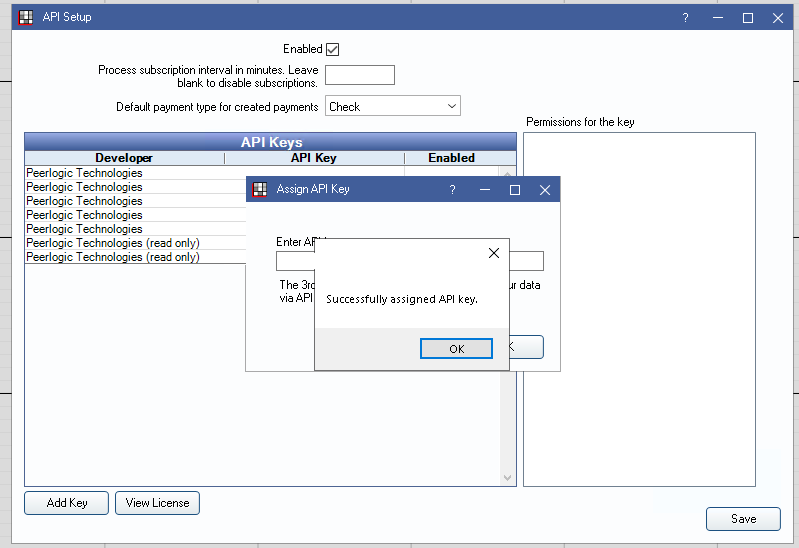 In the **API Keys** list, find the new **Peerlogic Technologies** key and make sure the **Enabled** column shows an **X**. Then let Peerlogic know the key is enabled, or return to the Peerlogic window and click **Connect** (or **Migrate** if you're switching portal types).
## Exceptions
Go back to **Setup** > **Advanced Setup** > **API** and check that:
* The **Peerlogic Technologies** key you just added shows an **X** under **Enabled**.
* You pasted the whole key, with no extra spaces, and it's the most recent key Peerlogic gave you.
* You added the key in the clinic you're connecting to Peerlogic.
Then try **Connect** or **Migrate** again in Peerlogic.
Sometimes, after a practice starts using Aimee for scheduling, Open Dental needs the key refreshed before Peerlogic can book appointments. If you host Open Dental on your own server, first restart the **eConnector** service. Then:
1. Go to **Setup** > **Advanced Setup** > **API**.
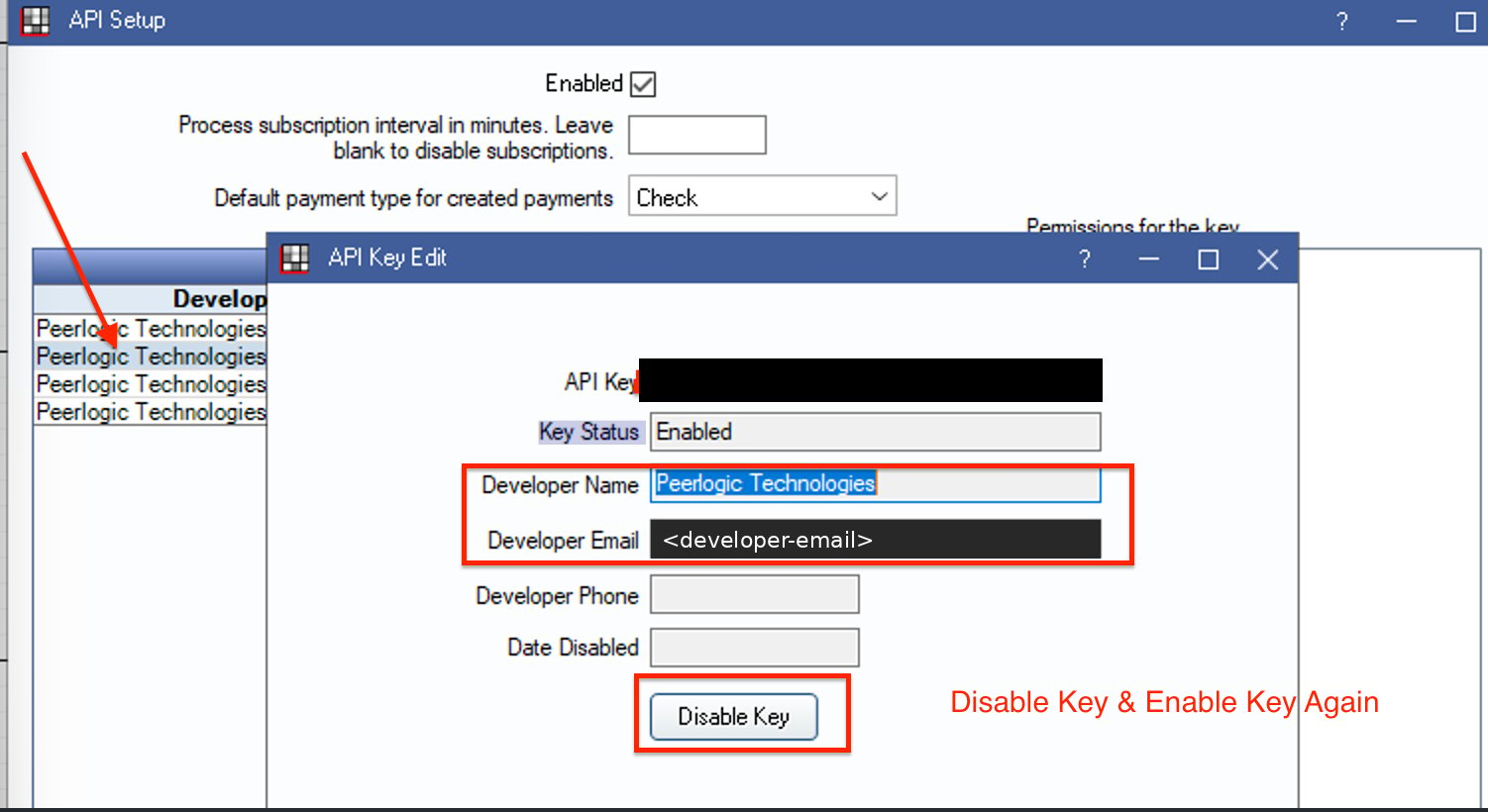
2. Double-click the **Peerlogic Technologies** key that Peerlogic Support names.
3. In **API Key Edit**, click **Disable Key**, then click **Enable Key**.
In the **API Keys** list, find the new **Peerlogic Technologies** key and make sure the **Enabled** column shows an **X**. Then let Peerlogic know the key is enabled, or return to the Peerlogic window and click **Connect** (or **Migrate** if you're switching portal types).
## Exceptions
Go back to **Setup** > **Advanced Setup** > **API** and check that:
* The **Peerlogic Technologies** key you just added shows an **X** under **Enabled**.
* You pasted the whole key, with no extra spaces, and it's the most recent key Peerlogic gave you.
* You added the key in the clinic you're connecting to Peerlogic.
Then try **Connect** or **Migrate** again in Peerlogic.
Sometimes, after a practice starts using Aimee for scheduling, Open Dental needs the key refreshed before Peerlogic can book appointments. If you host Open Dental on your own server, first restart the **eConnector** service. Then:
1. Go to **Setup** > **Advanced Setup** > **API**.
2. Double-click the **Peerlogic Technologies** key that Peerlogic Support names.
3. In **API Key Edit**, click **Disable Key**, then click **Enable Key**.
 Your **API Keys** list may show more than one **Peerlogic Technologies** line from earlier connections. When Peerlogic issues a new key, it disables the previous one on its side. Leave the older lines as they are unless Peerlogic Support asks you to change them.
## Verify
* In Open Dental, the new **Peerlogic Technologies** key shows an **X** under **Enabled**.
* In Peerlogic, **Practice Settings** > **Integrations** shows the **Open Dental** card as **Connected**.
## Related
* [Contact Peerlogic Support](https://support.peerlogic.com/contact/)
* [Open Dental API setup (Open Dental)](https://www.opendental.com/site/apisetup.html)
* [eConnector (Open Dental)](https://www.opendental.com/help252/econnector.html)
## Related topics
- [EHR and PMS integration requirements for partners](/integrations/ehr-practice-management/ehr-pms-integration-requirements.md)
- [Configure introductory greetings](/peerlogic-voice/calling/configure-introductory-greetings.md)
- [Create subscriptions](/peerlogic-api-reference/subscriptions-and-events/create-subscriptions.md)
- [Update subscriptions](/peerlogic-api-reference/subscriptions-and-events/update-subscriptions.md)
- [Register your practice for 10DLC texting](/peerlogic-voice/onboarding/register-for-10dlc-texting.md)
This documentation is built and hosted on [Mintlify](https://mintlify.com), a developer documentation platform.
Your **API Keys** list may show more than one **Peerlogic Technologies** line from earlier connections. When Peerlogic issues a new key, it disables the previous one on its side. Leave the older lines as they are unless Peerlogic Support asks you to change them.
## Verify
* In Open Dental, the new **Peerlogic Technologies** key shows an **X** under **Enabled**.
* In Peerlogic, **Practice Settings** > **Integrations** shows the **Open Dental** card as **Connected**.
## Related
* [Contact Peerlogic Support](https://support.peerlogic.com/contact/)
* [Open Dental API setup (Open Dental)](https://www.opendental.com/site/apisetup.html)
* [eConnector (Open Dental)](https://www.opendental.com/help252/econnector.html)
## Related topics
- [EHR and PMS integration requirements for partners](/integrations/ehr-practice-management/ehr-pms-integration-requirements.md)
- [Configure introductory greetings](/peerlogic-voice/calling/configure-introductory-greetings.md)
- [Create subscriptions](/peerlogic-api-reference/subscriptions-and-events/create-subscriptions.md)
- [Update subscriptions](/peerlogic-api-reference/subscriptions-and-events/update-subscriptions.md)
- [Register your practice for 10DLC texting](/peerlogic-voice/onboarding/register-for-10dlc-texting.md)
This documentation is built and hosted on [Mintlify](https://mintlify.com), a developer documentation platform.