> ## Documentation Index
> Fetch the complete documentation index at: https://docs.peerlogic.com/llms.txt
> Use this file to discover all available pages before exploring further.
# Forward calls to an external number
> Route calls from a Peerlogic Voice number to an external phone number during a selected time frame.
Change the routing for a Peerlogic Voice number so calls go to an external phone number during a selected time frame.
## Before you begin
* Sign in to the Peerlogic Portal with Office Manager credentials.
* Identify the Peerlogic Voice number and time frame you want to update.
* Repeat this procedure for every number that needs the same routing change.
## Procedure
In the Peerlogic Portal, select **Inventory**.
 Select the phone number whose calls you want to forward.
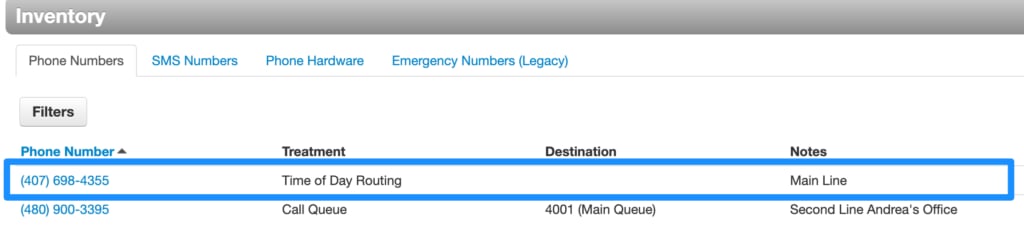 Open the time frame during which calls should go to the external number.
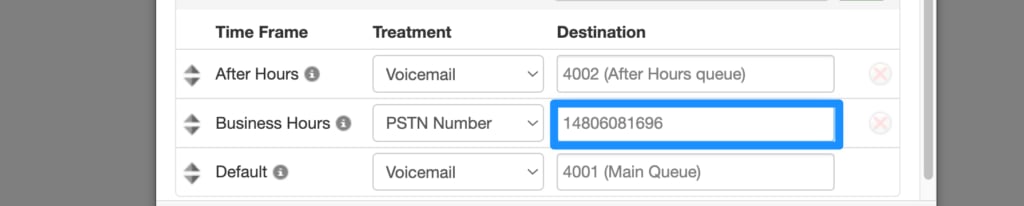
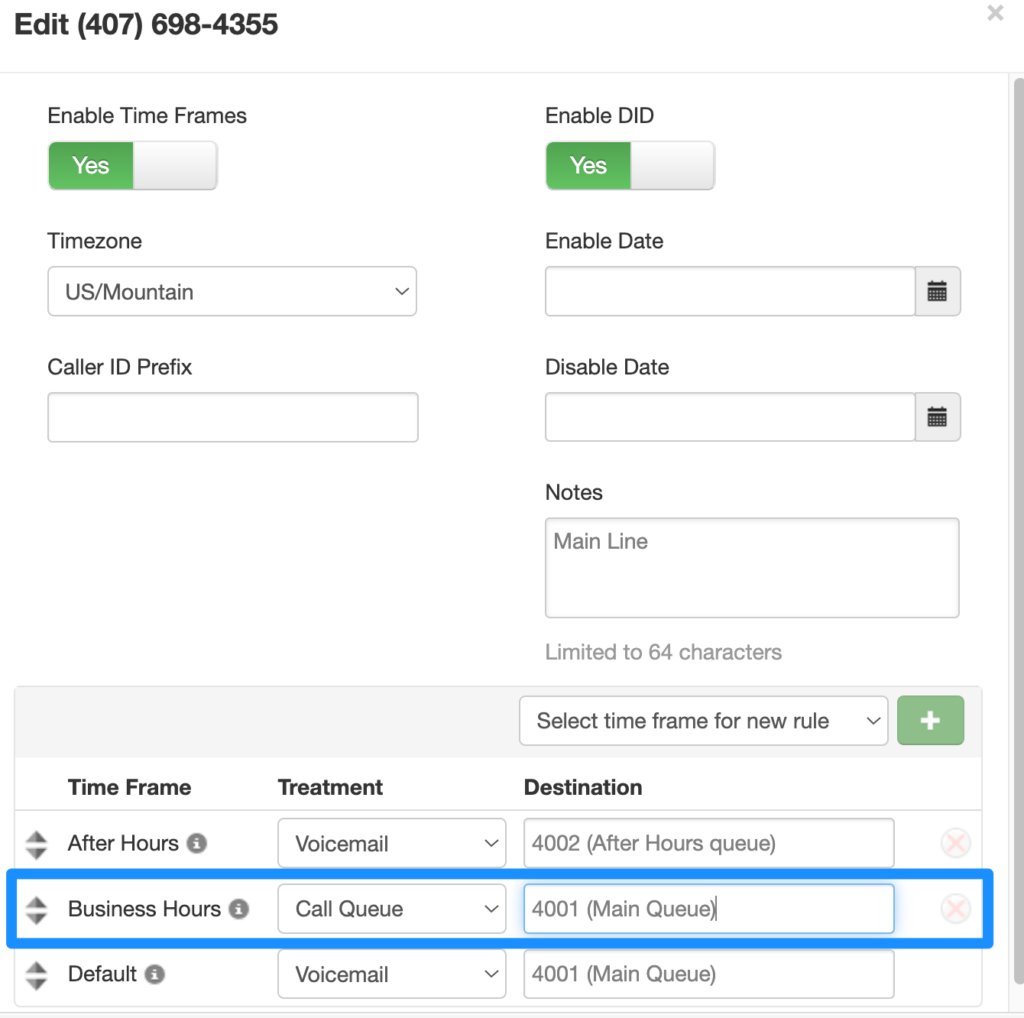 In **Treatment**, select **PSTN Number**.
 In **Destination**, enter the external phone number. Include the `1` prefix before the number.
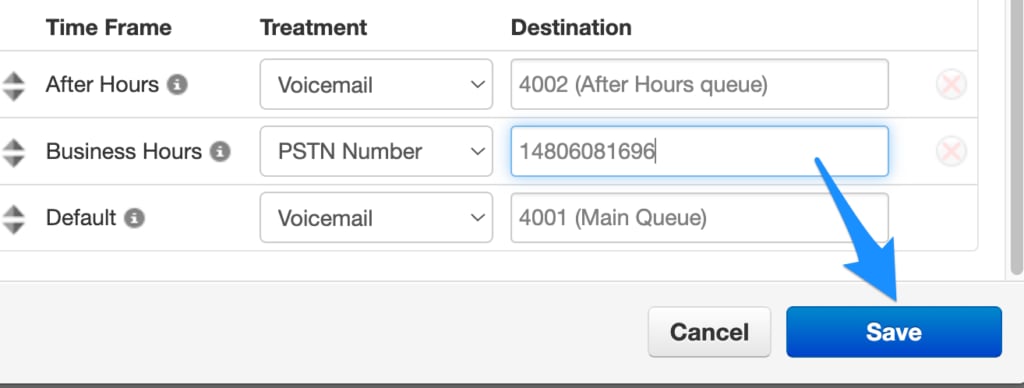
 Select **Save**.
 Unless you use a **Specific Dates/Ranges** time frame, restore the normal routing when you no longer want calls forwarded to the external number.
## Verify
Call the Peerlogic Voice number you updated and confirm that the call reaches the external destination during the selected time frame.
## Related
* [Create a time frame](/peerlogic-voice/calling/create-a-time-frame)
* [Contact Peerlogic Support](https://support.peerlogic.com/contact/)
## Related topics
- [Create a time frame](/peerlogic-voice/calling/create-a-time-frame.md)
- [Change business hours](/peerlogic-voice/calling/change-business-hours.md)
- [Peerlogic Voice](/peerlogic-voice.md)
- [Port numbers away from Peerlogic](/peerlogic-voice/onboarding/port-numbers-away.md)
- [Port your numbers to Peerlogic](/peerlogic-voice/onboarding/port-numbers-to-peerlogic.md)
This documentation is built and hosted on [Mintlify](https://mintlify.com), a developer documentation platform.
Unless you use a **Specific Dates/Ranges** time frame, restore the normal routing when you no longer want calls forwarded to the external number.
## Verify
Call the Peerlogic Voice number you updated and confirm that the call reaches the external destination during the selected time frame.
## Related
* [Create a time frame](/peerlogic-voice/calling/create-a-time-frame)
* [Contact Peerlogic Support](https://support.peerlogic.com/contact/)
## Related topics
- [Create a time frame](/peerlogic-voice/calling/create-a-time-frame.md)
- [Change business hours](/peerlogic-voice/calling/change-business-hours.md)
- [Peerlogic Voice](/peerlogic-voice.md)
- [Port numbers away from Peerlogic](/peerlogic-voice/onboarding/port-numbers-away.md)
- [Port your numbers to Peerlogic](/peerlogic-voice/onboarding/port-numbers-to-peerlogic.md)
This documentation is built and hosted on [Mintlify](https://mintlify.com), a developer documentation platform.