Before you begin
- Sign in to the Peerlogic Portal with Office Manager credentials.
- Identify the Peerlogic Voice number and time frame you want to update.
- Repeat this procedure for every number that needs the same routing change.
Procedure
1
Open Inventory
In the Peerlogic Portal, select Inventory.
Open Inventory in the Peerlogic Portal.
2
Select the number
Select the phone number whose calls you want to forward.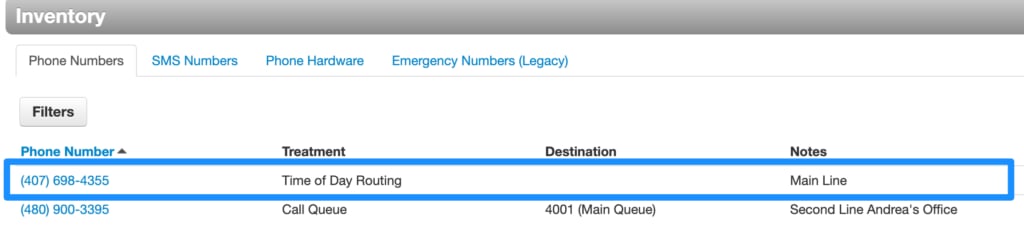
Select the phone number whose routing you want to change.
3
Select the time frame
Open the time frame during which calls should go to the external number.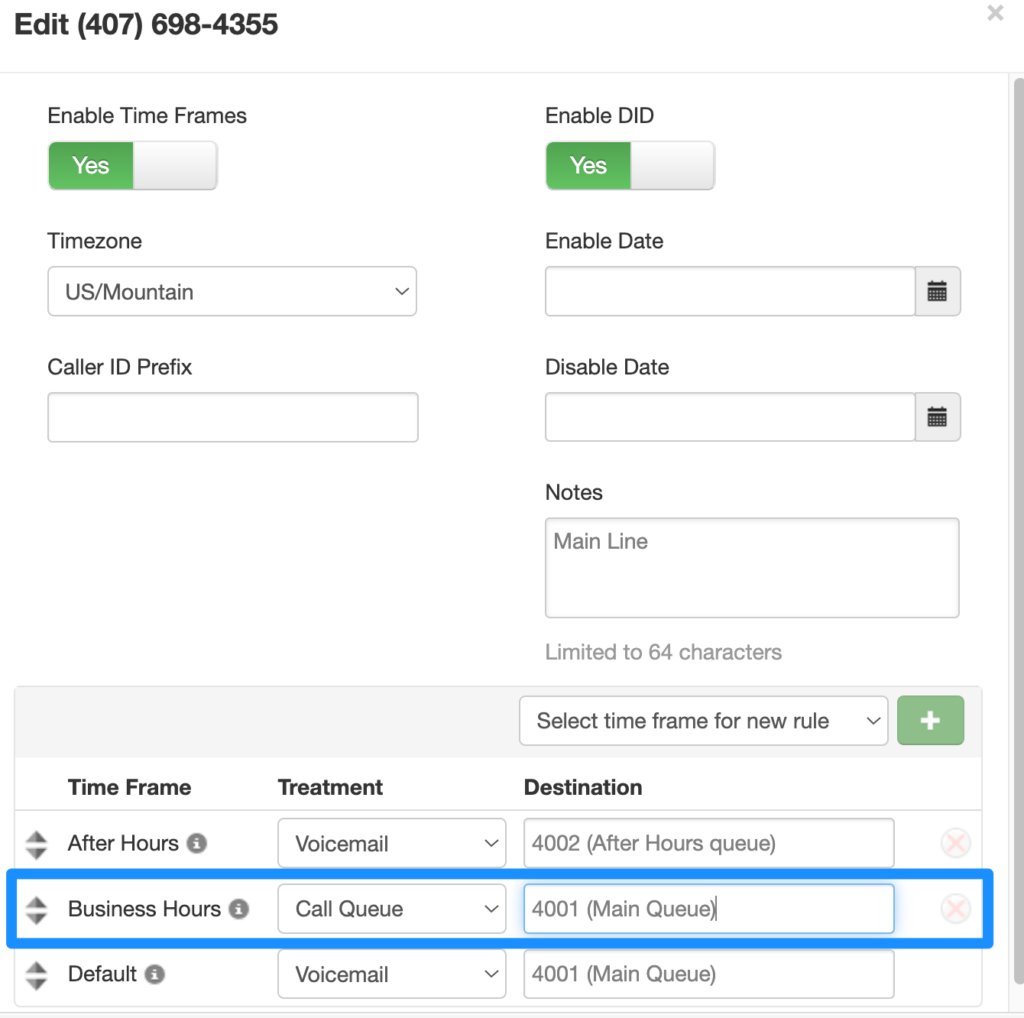
Open the time frame that should route calls externally.
4
Choose the routing treatment
In Treatment, select PSTN Number.
Set the time frame treatment to PSTN Number.
5
Enter the destination
In Destination, enter the external phone number. Include the 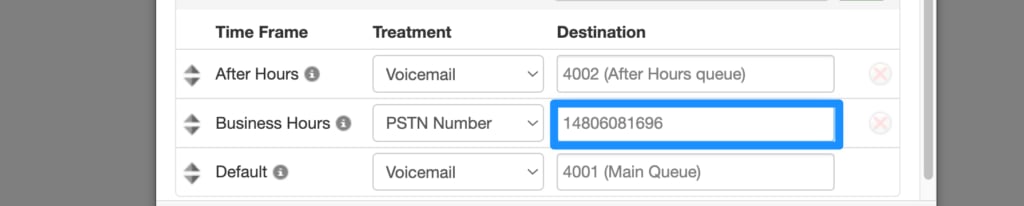
1 prefix before the number.Enter the external destination with the 1 prefix.
6
Save the routing change
Select Save.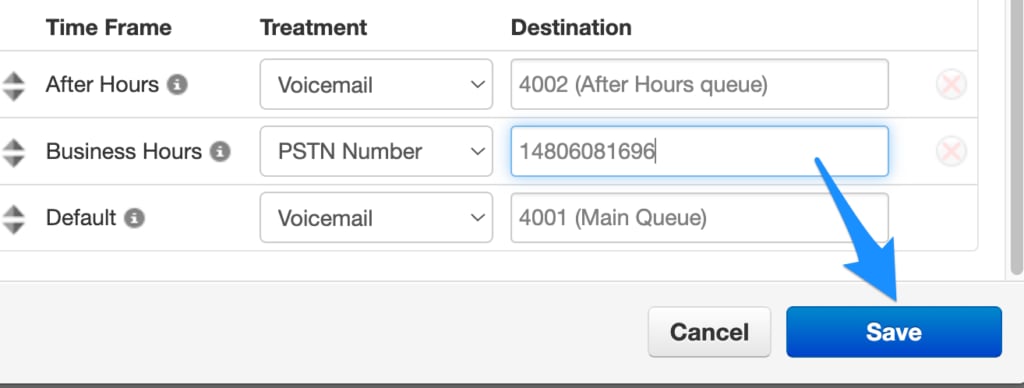
Save the updated routing configuration.
Unless you use a Specific Dates/Ranges time frame, restore the normal routing when you no longer want calls forwarded to the external number.